✓ InToday Workflow Guide
Online booking workflow
Online in-clinic physiotherapy booking
Follow the client’s journey from a clinic website to a confirmed physiotherapy appointment—and see the same booking ready for the care team.
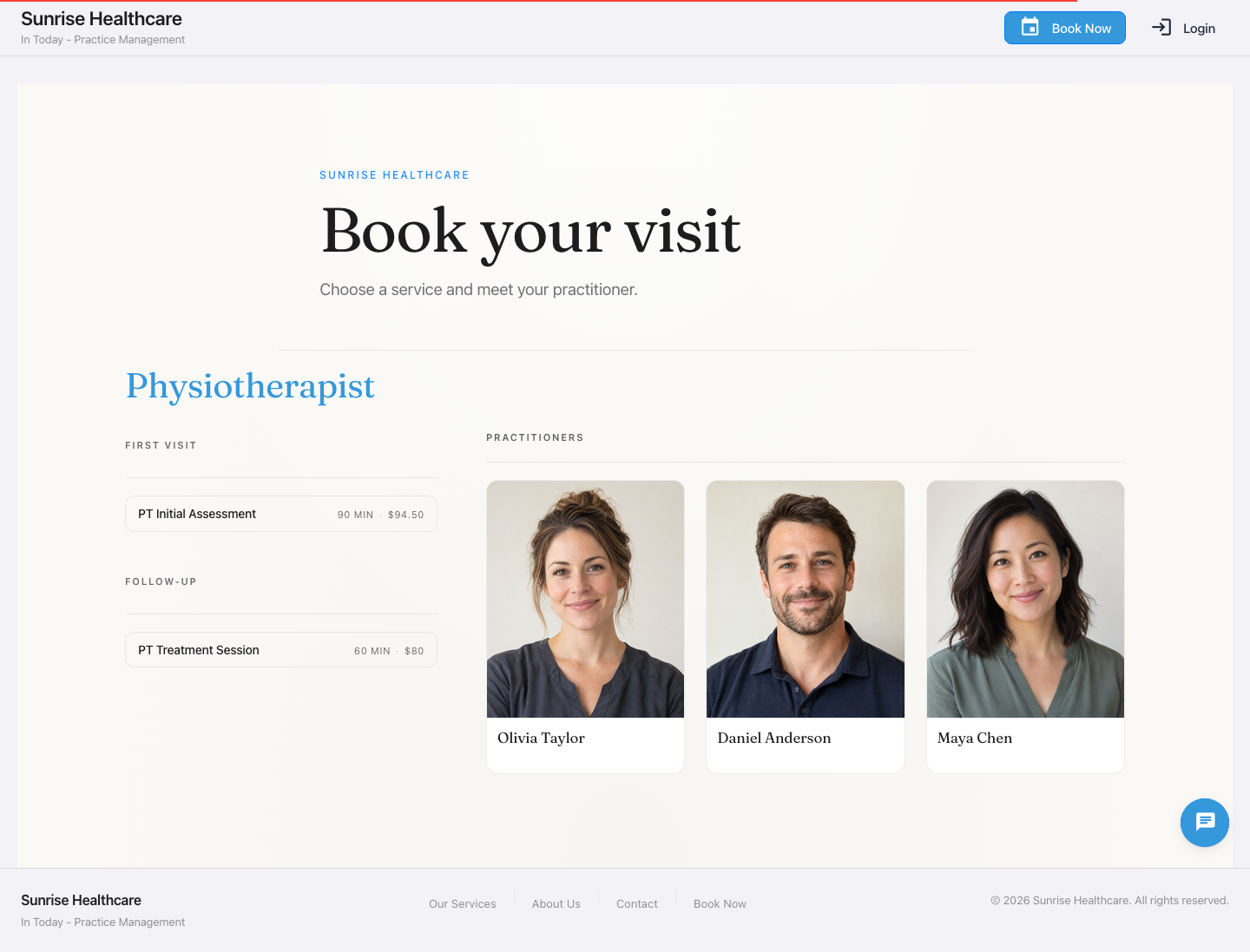
1 · ChooseSelect the PT service and preferred practitioner.
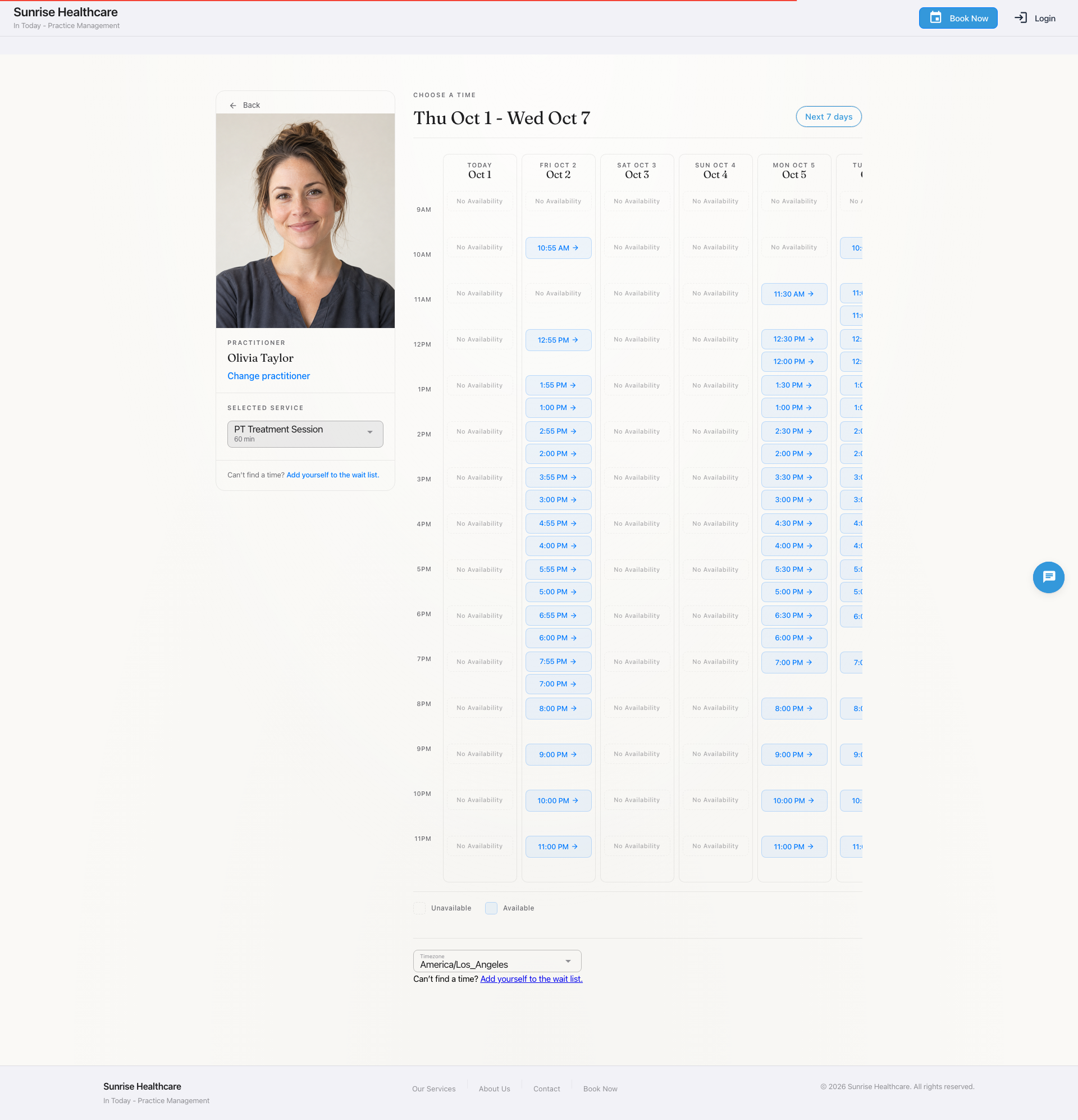
2 · SchedulePick an available in-clinic appointment time.
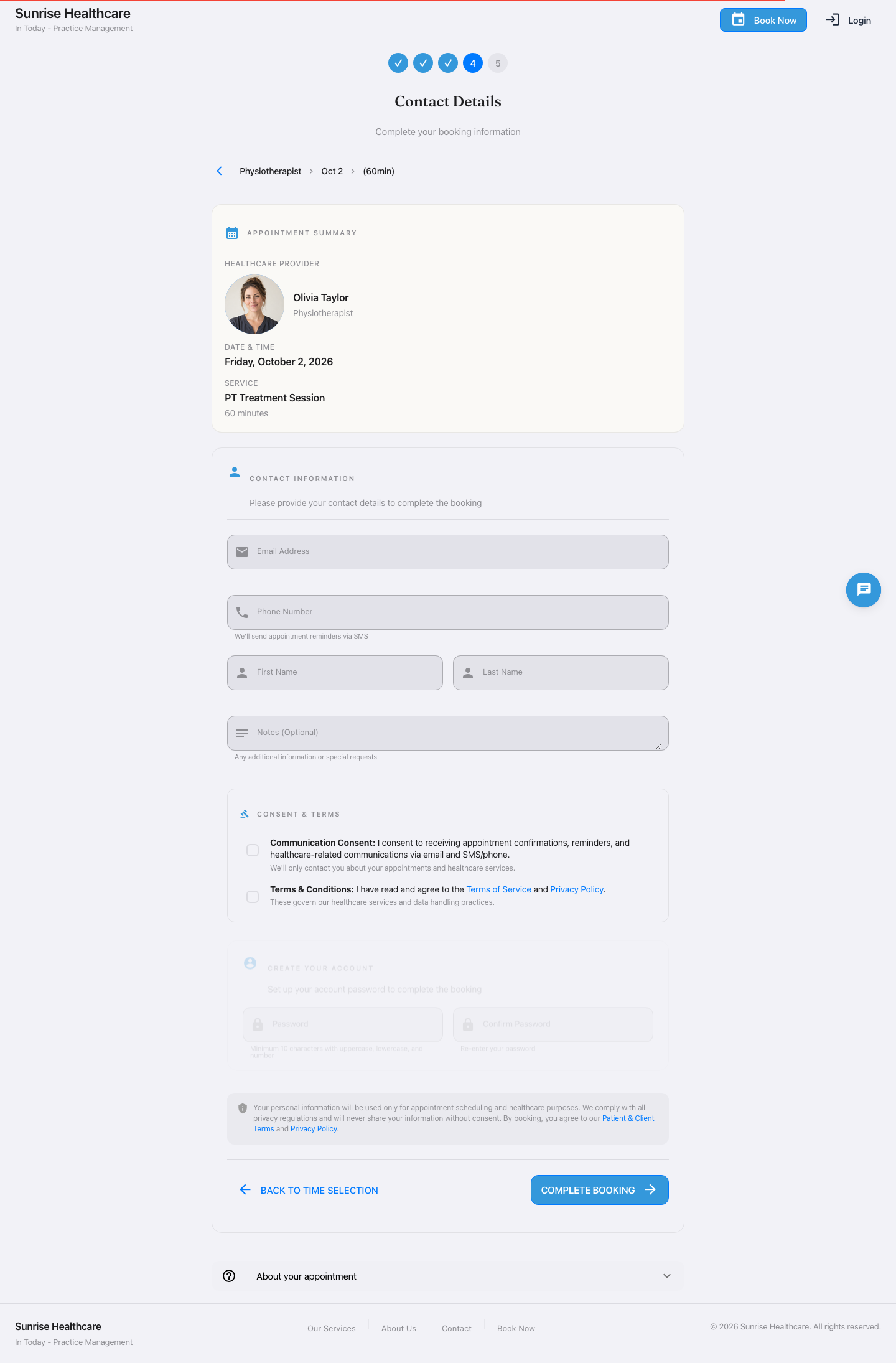
3 · Sign upEnter contact details, consent, and an account password.
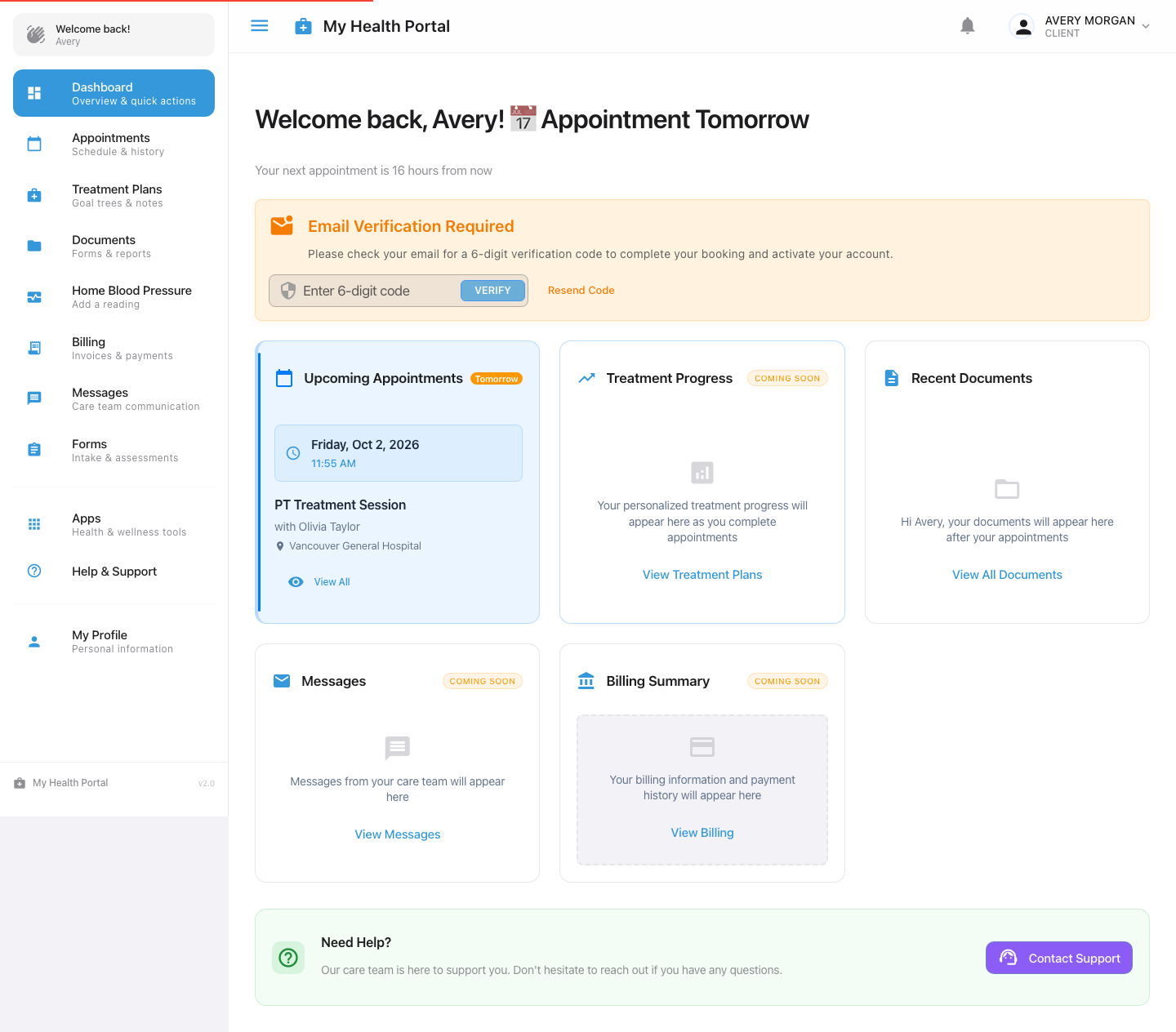
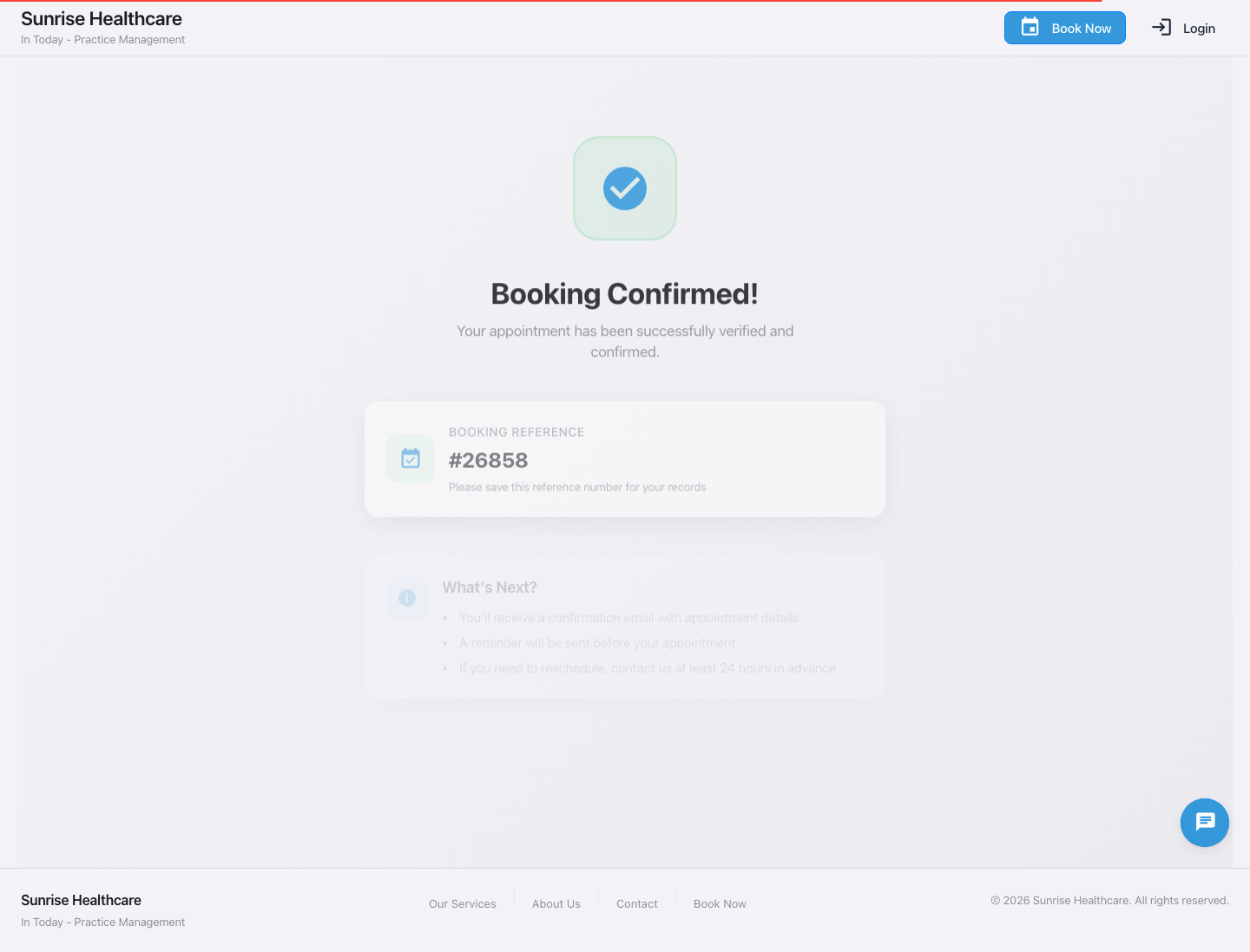
4 · ConfirmVerify the email and see the appointment in both client and staff views.
No login is required to begin. The public booking journey is designed for a new client arriving from the clinic website. Client login is shown later as a separate return visit.
InToday public bookingServices and practitioners
InToday public bookingLive availability
InToday public bookingContact details and account
InToday client portalEmail verification
InToday public bookingConfirmed booking
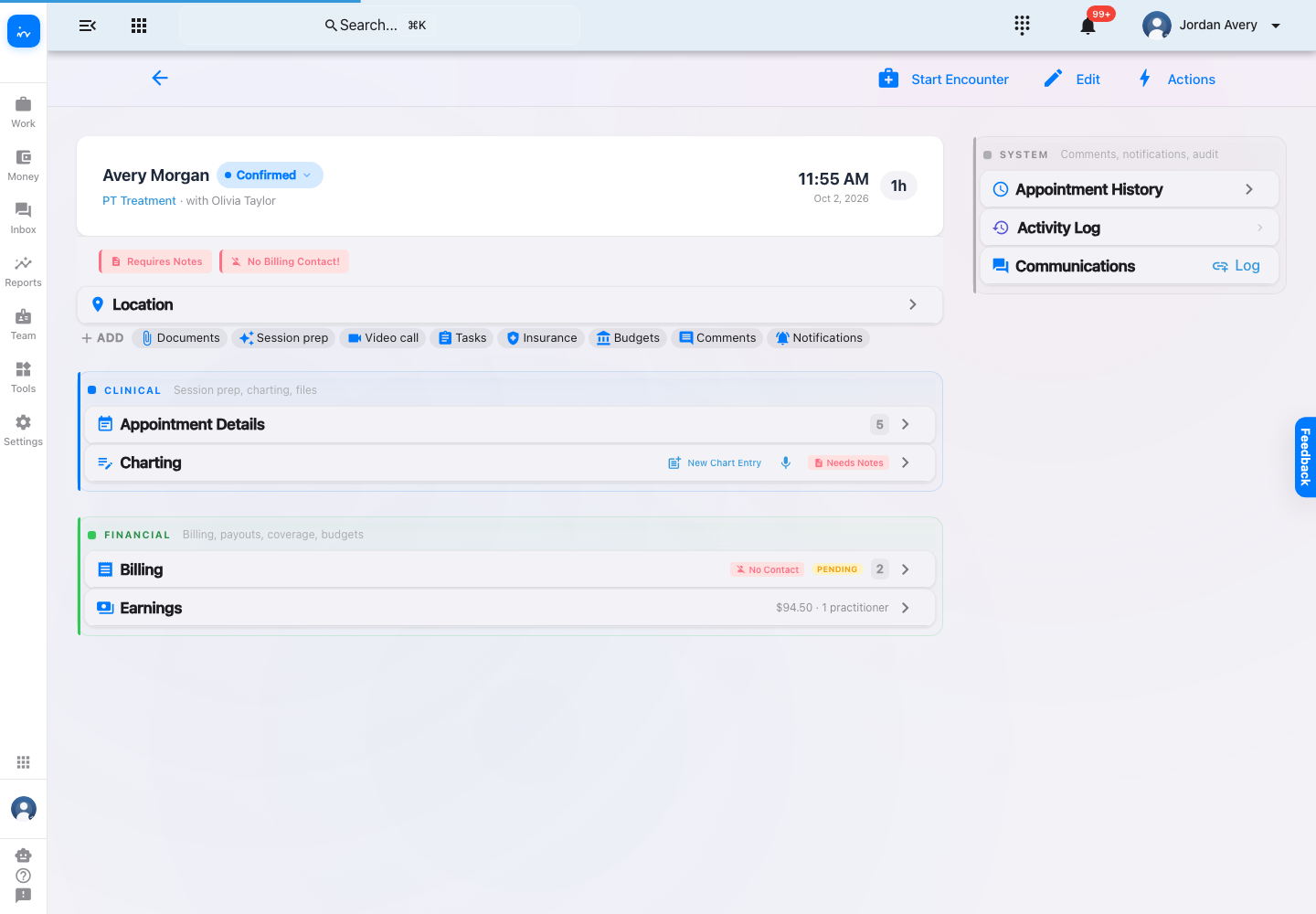
InToday web appStaff calendar event
✓ InToday Workflow Guide
Separate return-client sequence
Client access after booking
Public booking and client login are related but distinct. A new client does not need to sign in before choosing a service or time. After the account exists, the client can return through the normal login page.
Public guest booking
Begins on the clinic’s public booking page. The client selects the visit first, then supplies contact and account details at the final step.
Returning client access
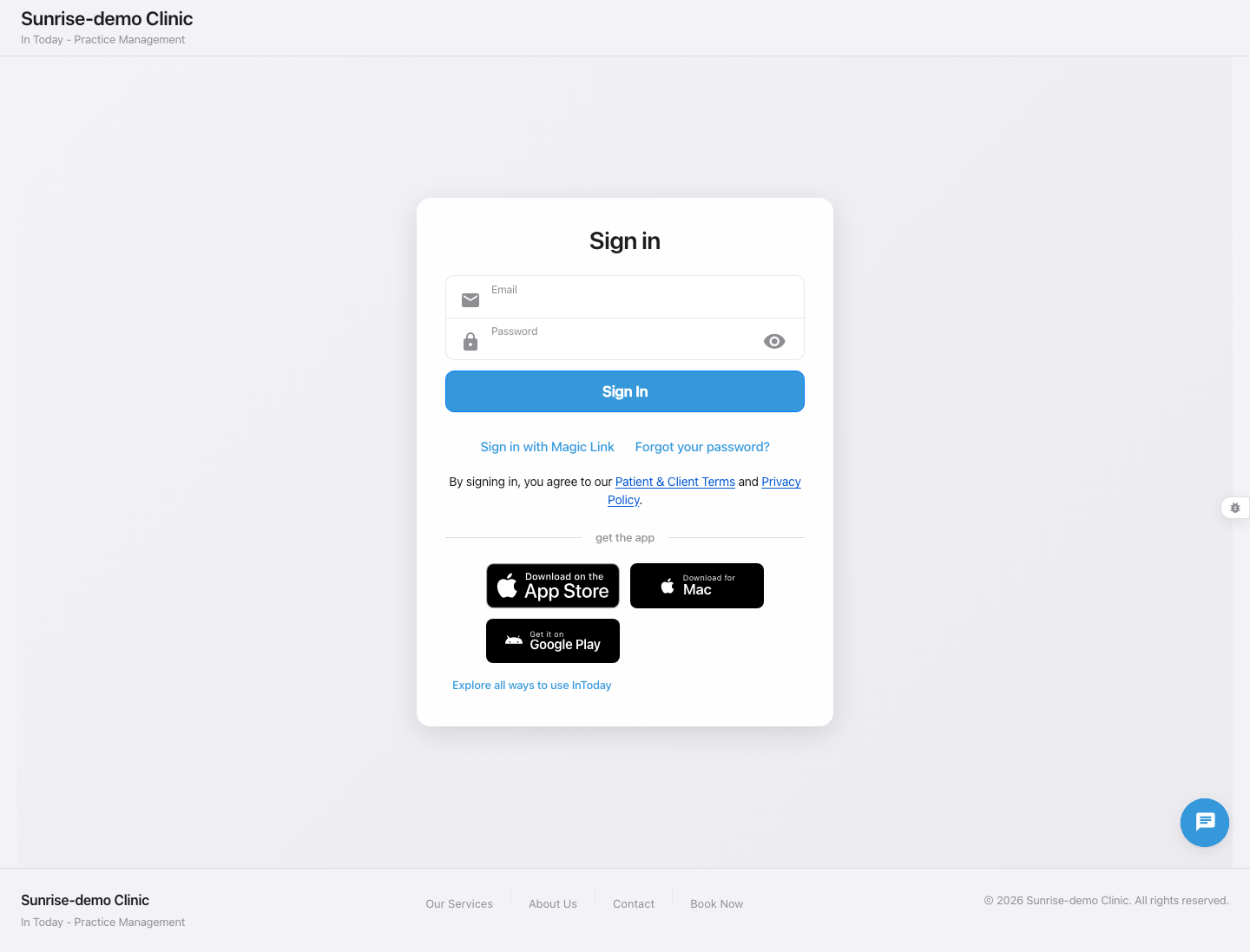
Begins on the client sign-in page. The client may use email and password or choose the separate magic-link option.
Assignment flexibility
This is a general referral workflow option, separate from public self-booking. A clinic may let therapists choose from referral opportunities, have coordinators select and assign a therapist, or enable rule-based auto-assignment using configured availability and capacity. The clinic chooses the strategy, and it can be tailored to its operating model.
InToday Workflow GuideBooking does not require prior login
InToday client accessSign-in options
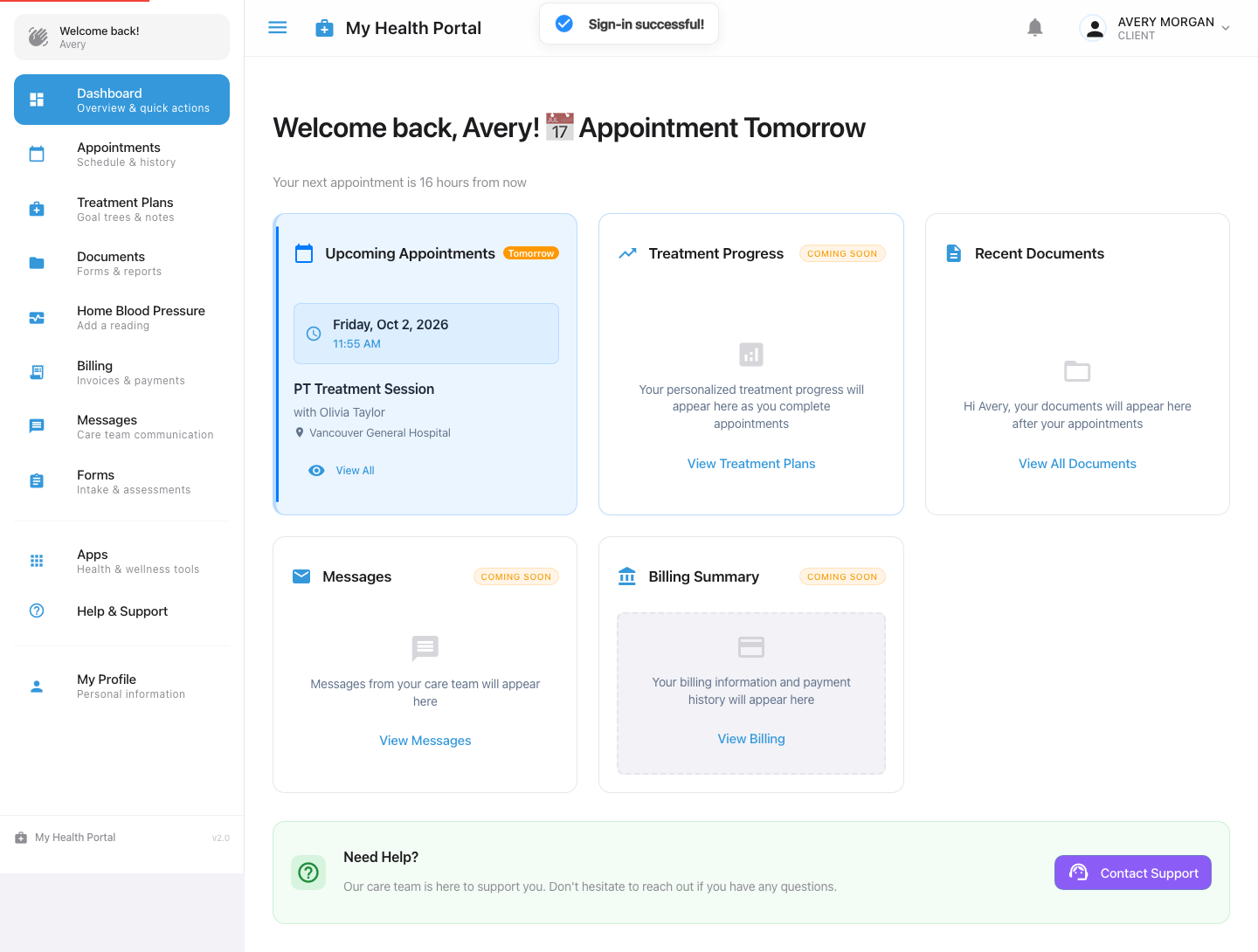
InToday client accessUpcoming appointments
Complete online booking workflow
From the clinic website to a confirmed calendar event
✓New clients can start without a login.
The service, practitioner, and time come first.
✓Signup is part of booking.
Contact details, consent, and account creation are completed in one journey.
✓The in-clinic details carry through.
The verified appointment shows PT Treatment, Olivia Taylor, and Vancouver General Hospital.
✓Both sides can see the result.
The client sees the upcoming visit; the team sees the confirmed calendar event.
Explore InToday
Bring online booking, scheduling, client access, charting, communications, and billing together in one platform.
Clients and staff see the same confirmed appointment while continuing through the tools designed for each side of care.
Visit ntdy.io →
InToday Workflow Guidentdy.io